
Making the buzzers work on Chromebooks
Our Remote Tactile Buzzers work on Chromebooks. However, sometimes a ChromeOS setting can get in the way of the pairing.
The problem
When you plug the buzzers into your Chromebook for the first time while logged into your Google account, ChromeOS shows this notification:
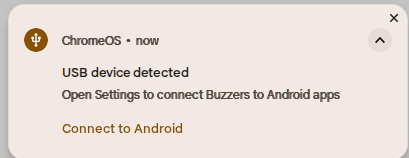
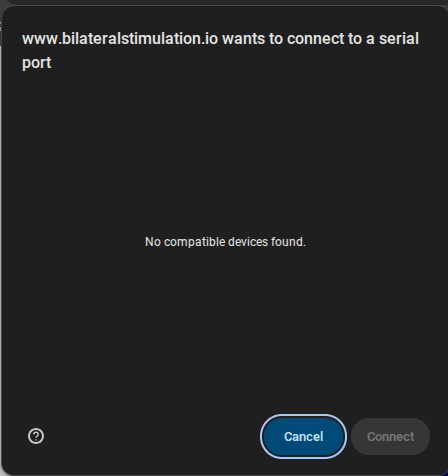
Clicking Connect to Android turns on a ChromeOS setting that makes the buzzers available to Android apps, but unavailable to normal apps like Google Chrome. The pairing dialog then comes up empty and says "No compatible devices found":
The solution
Turn that ChromeOS setting off again:
- Plug the buzzers into your Chromebook via USB.
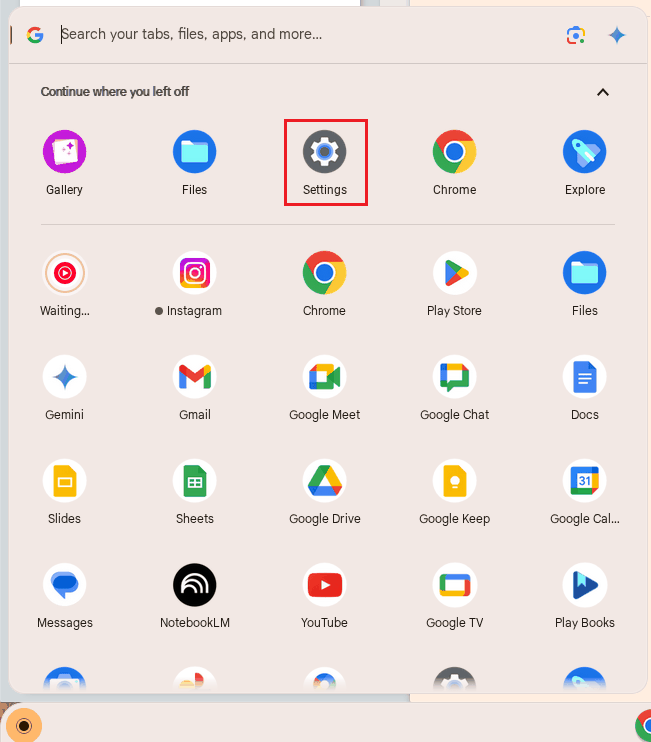
- Open your Chromebook Settings (bottom left).
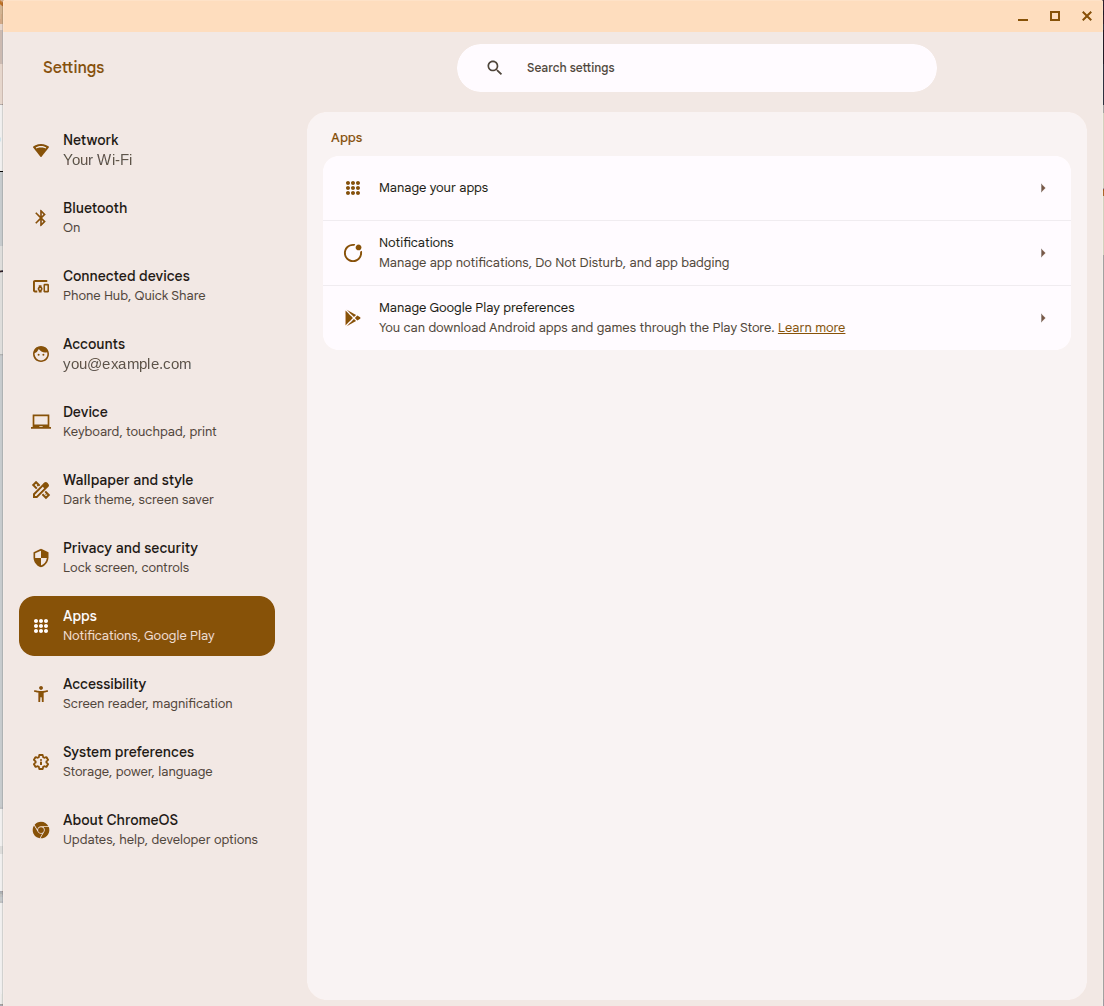
- Click on Apps.
- Click on Manage Google Play preferences.
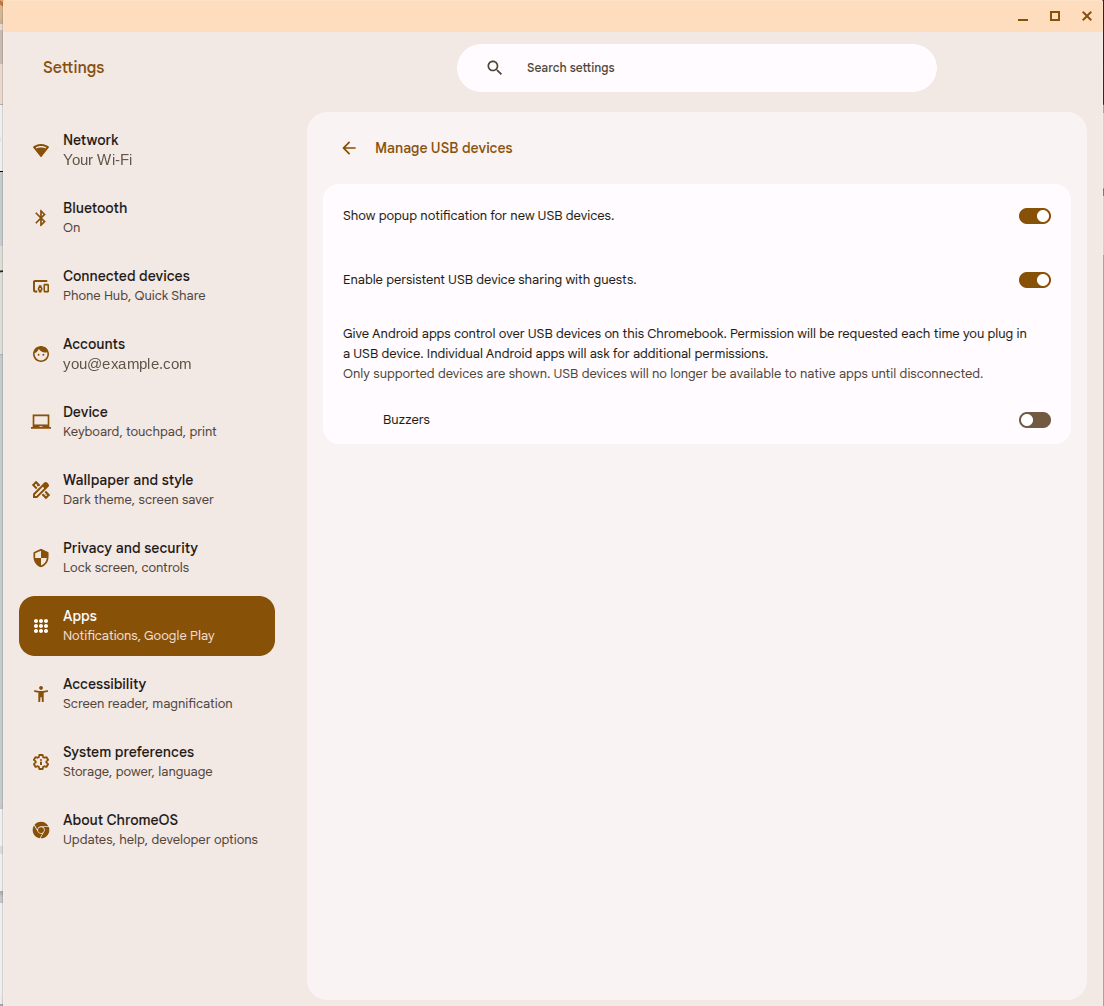
- Click on Manage USB devices and make sure the switch next to Buzzers is turned off.
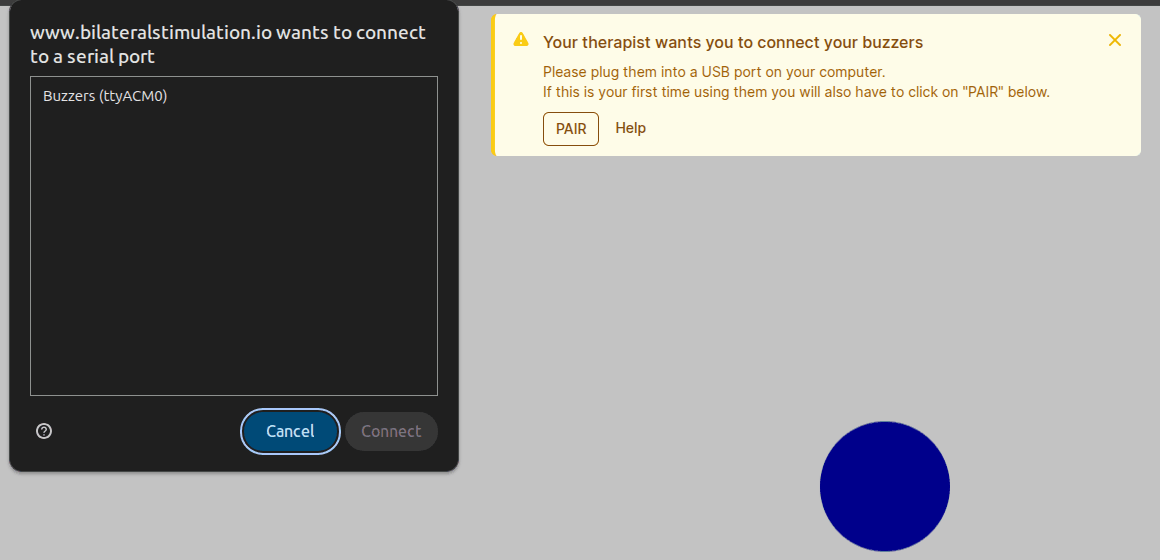
- Try pairing the buzzers again, e.g. via this practice link.
Open your Chromebook Settings:
Click on Apps:
Click on Manage Google Play preferences:
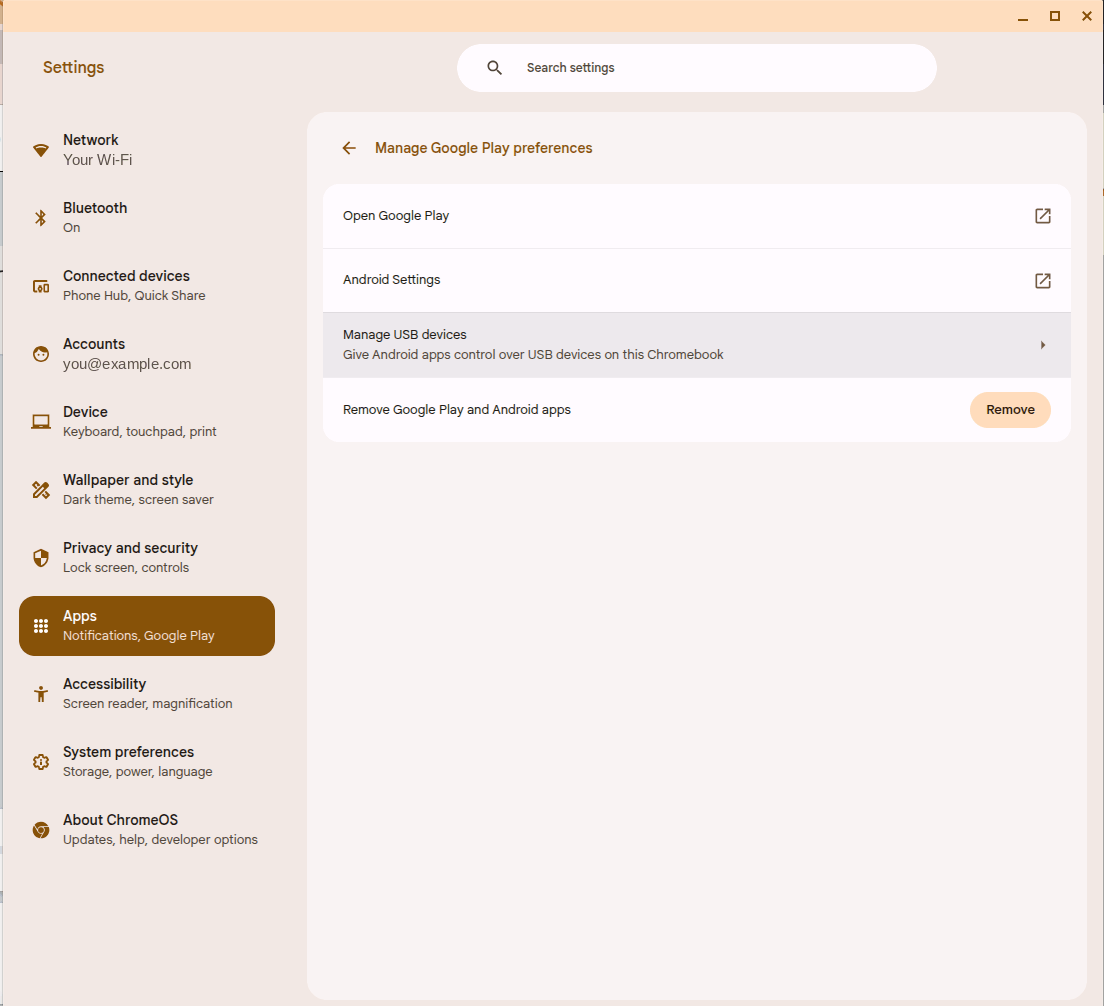
Click on Manage USB devices and make sure the switch next to Buzzers is turned off:
Now the buzzers show up when pairing:
Still not working?
Some Chromebooks have trouble with certain USB devices in general. This can usually be solved by plugging the buzzers into a USB hub instead of directly into the Chromebook. We recommend this model.
If none of the above makes the buzzers work for you please enter chrome://device-log into your Chrome browser's address bar and send us a screenshot of it to contact@bilateralstimulation.io.